
Why a backup matters
TabTuyo keeps your saved media and preferences locally in your browser profile. That makes daily use independent of a TabTuyo account, but local storage is not an online backup. Removing the extension, clearing extension data or losing the browser profile can remove your setup. A backup file is a copy you deliberately save somewhere else.
Create a backup
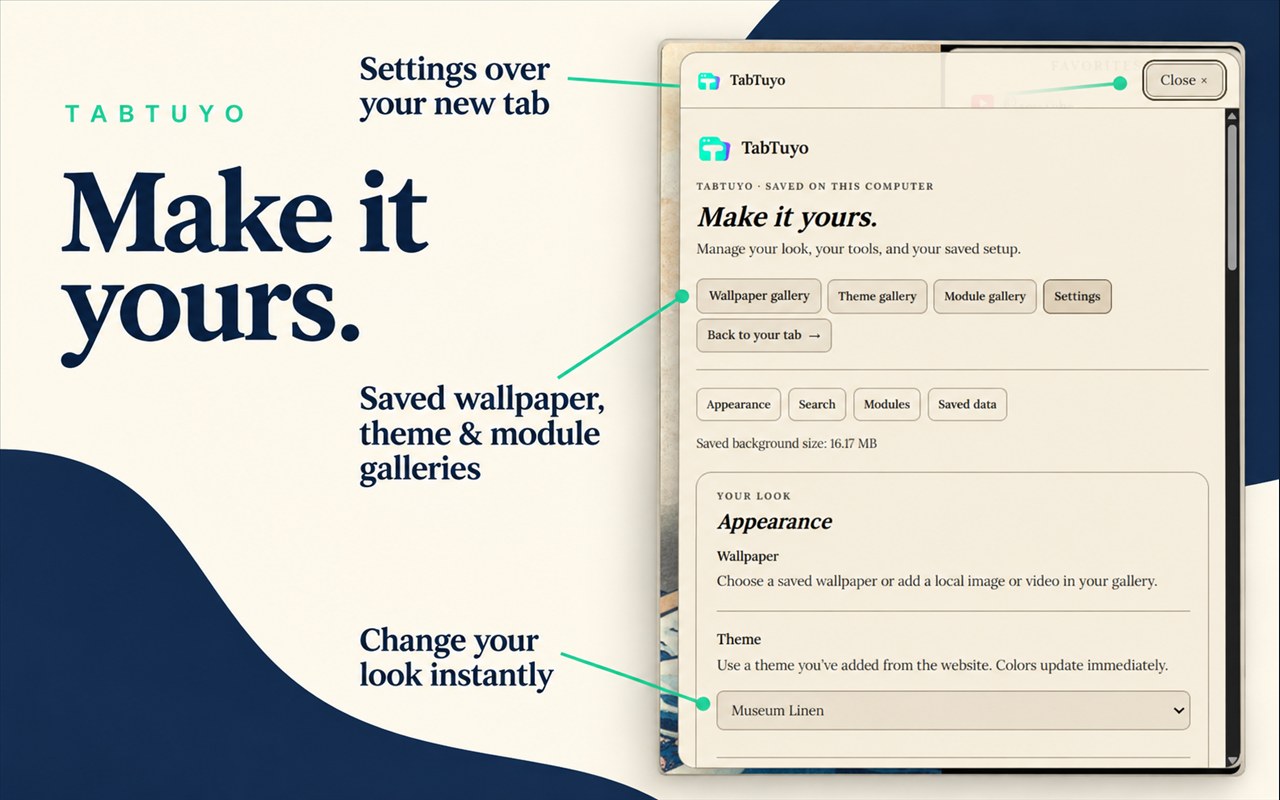
- Open TabTuyo’s settings from the new-tab toolbar.
- Find Saved data → Backup and restore.
- Choose Create backup and allow the file to finish saving.
- Check that the file exists in your chosen download folder. Copy it to a location you can recover independently of this browser profile.
Saved videos can make the backup large. Leave enough free disk space and do not close the tab during the export. Make a new backup after significant changes, such as building a favorites collection or writing important notes.
Restore carefully
Importing a backup replaces your current setup. Export the current setup first if it contains anything you may want later. Then choose Import backup, select the TabTuyo backup file and read the confirmation before proceeding. Once it finishes, open a fresh new tab and check your wallpaper, favorite links and important notes.
A backup is a snapshot, not a live merge between computers. Changes made after export are not in that file. Keep the original file until you have checked the restored setup.
Treat the file as personal information
A backup can include saved wallpapers, favorites, tasks, notes and preferences. Do not post it publicly or attach it to an ordinary support request. If someone asks you for a backup to diagnose a problem, consider the personal entries it contains first. A cropped screenshot and a description are usually better starting points.
Clear the active wallpaper versus removing the extension
Clear active wallpaper in settings removes the current background selection while keeping the saved gallery. Removing the extension is a much broader browser action. Before uninstalling or resetting your profile, export anything you want to keep. See the privacy policy for the information stored on your device.