
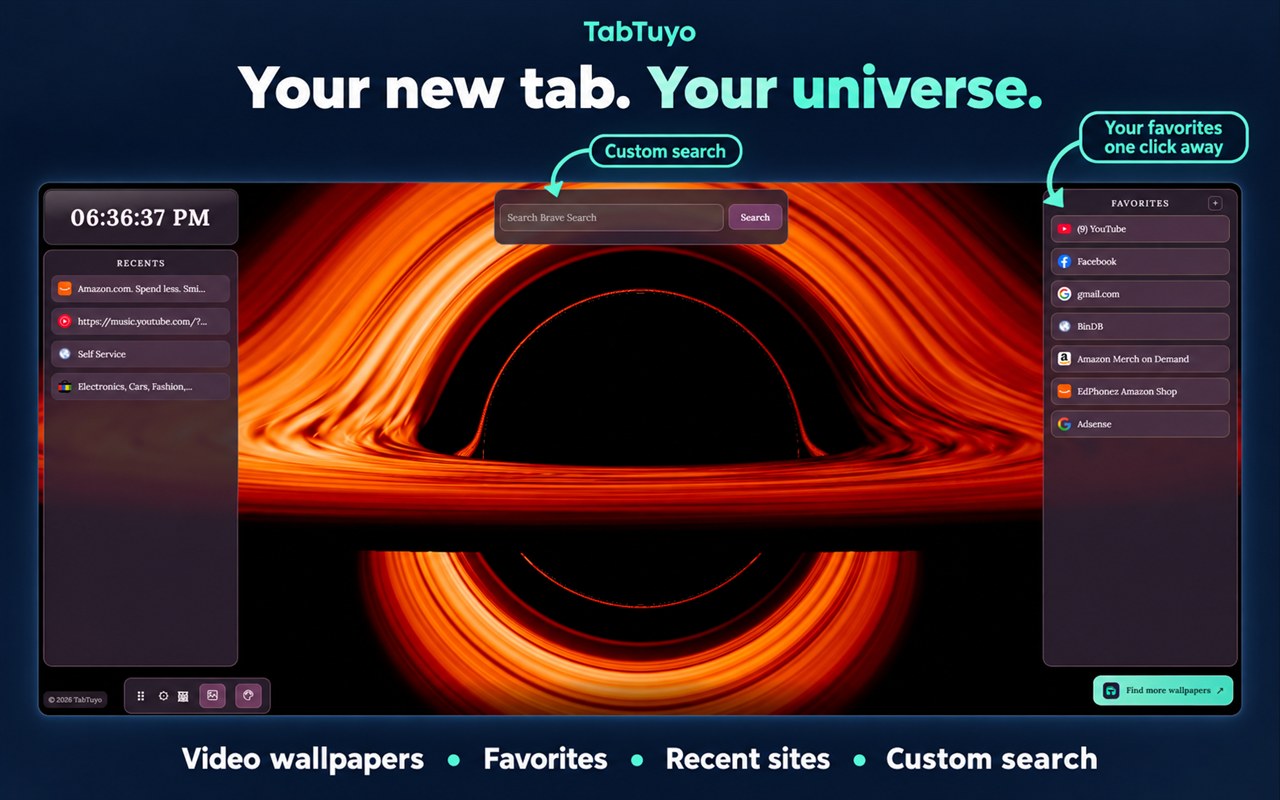
Start with what you need to see
A still image gives you an unchanging backdrop for search, notes and favorite links. A video adds movement: drifting clouds, firelight or an animated scene can make the new tab feel more atmospheric. Neither is the right choice for everyone. If movement behind text distracts you, start with an image.
Compare more than the thumbnail
For video, watch the complete available preview. A scene can be calm in one frame and bright or busy a moment later. Check the area behind your clock and search field throughout the motion. Avoid placing important text over flashing light or moving high-contrast edges.
The artwork detail page lists file information. A short video can still be a much larger download than a JPEG. Saving either kind downloads it to local storage; the small public preview is not the file used as your new-tab background.
Device and connection considerations
Video playback requires decoding work, and its resource use depends on the file, hardware and browser. On a laptop, compare a still image and a video during ordinary use rather than assuming a particular battery impact. Choose a still if playback is choppy, your device gets busy or you simply prefer a quiet screen.
Use a reliable connection for the first import, especially for video. Keep the transfer page open until completion. After saving, the local file is used by the extension; browsing and importing new website items still requires internet access.
Try a simple comparison
- Save an image and a video with similarly dark or light palettes.
- Apply the image and check that every widget label is readable.
- Apply the video without moving those widgets and watch a full cycle.
- Keep whichever supports your actual browsing routine.
Using your own files
You can choose local image or video media through the extension’s wallpaper controls. If a video does not play, check its format and codec; an .mp4 filename alone does not guarantee that the browser can decode its contents. Try a known-working file to distinguish a media issue from an extension issue. Keep your original source file separately, and only upload or redistribute media you have permission to share.