
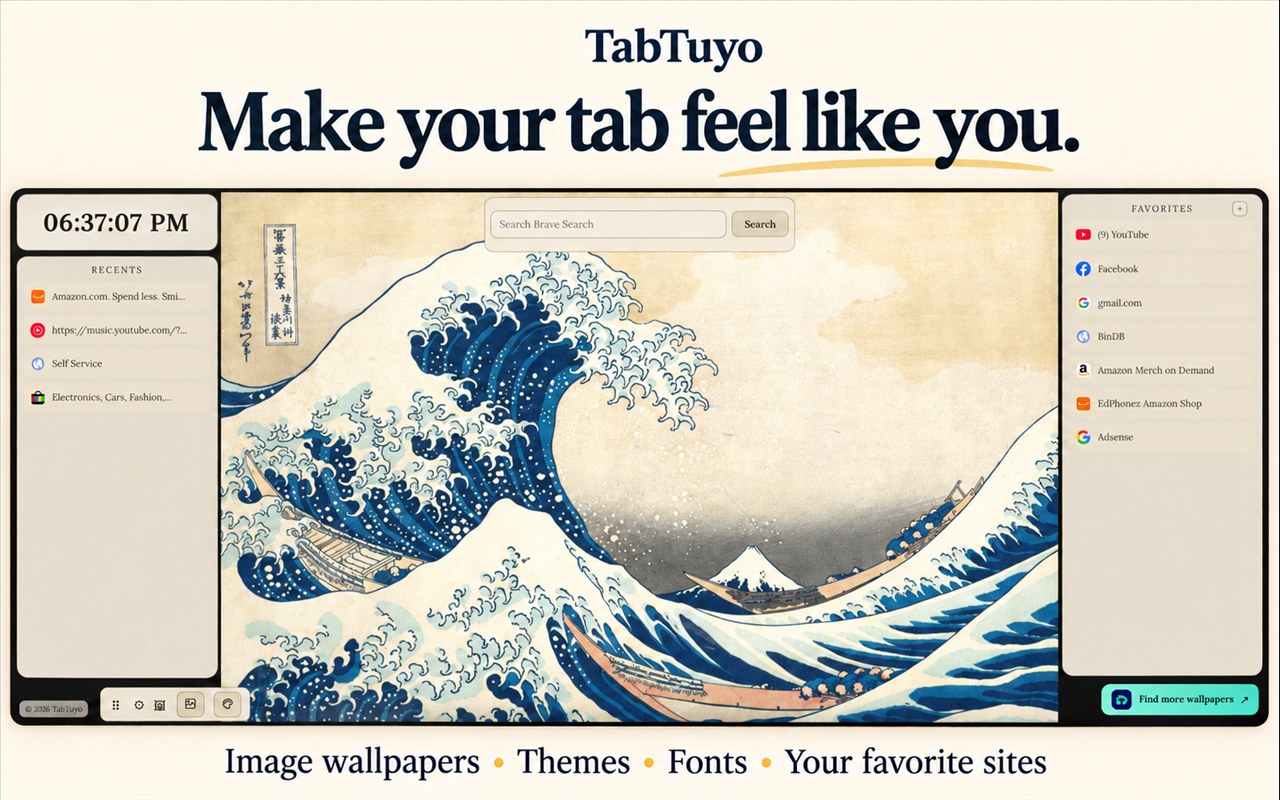
Decide which tools earn their space
Start with the clock, search and the links you actually use. TabTuyo also offers modules such as Tasks, Notepad, Calculator, a round clock and Stopwatch. Browse the Modules page for available tools. In the extension’s Settings → Modules, enable the saved modules you want to show. A module does not need to be visible just because you have added it.
Move and resize on your tab
- Open your TabTuyo new tab and choose Arrange layout. You can also right-click a module’s empty area to find this command; avoid right-clicking a favorite link or input field.
- Drag the module’s header to move it. Pull its bottom-right corner to resize it. Move or shrink another module first if a position is occupied.
- Choose Done when the arrangement feels right. Check the result at your normal browser window size.
For keyboard control while arranging, focus the module’s move handle and use the arrow keys to move by a grid cell. Hold Shift with an arrow key to resize. The current grid and minimum sizes limit how small a module can become.
Three starting layouts
- Keep the artwork central: clock at the upper left, search above the main subject, Favorites and Recents at the sides. Leave the face or main building unobstructed.
- A focused workspace: keep search and Favorites, add one Tasks or Notepad module, and turn off tools you rarely use.
- A scenery-first view: use fewer modules and smaller panels where the current controls allow. Give the horizon or central path a clear area.
Recover an awkward arrangement
Right-click a module’s empty area and choose its reset-size command to restore that module’s size. In Settings → Modules and layout, Reset layout restores the default sizes and positions and returns the controls to the bottom center. Create a backup first if you want to keep your current setup.
Finish with theme and text
Under Settings → Appearance, choose an added theme, font and text size. Check readability over both the bright and dark parts of your wallpaper.
Build around one task
For a simple launch screen, start with search, a clock and a short favorites panel. For a planning screen, add tasks or notes where you can read several lines comfortably. Keep tools you seldom use out of the focal area. A module being available does not mean it needs to stay visible.
Check long labels and keyboard access
Test a long website title, several task entries and the largest clock format you use. Dragging a panel into a small space can make a clean empty layout crowded once real content appears. Use Tab to move through controls and confirm that focus remains visible against the selected theme.
Protect a layout you like
Create a backup before experimenting with a substantially different theme or workspace arrangement. A screenshot is useful for remembering positions, but it cannot restore your saved data. Follow backup and restore for a recoverable copy.